Use Layouts and Templates
Use layouts to keep recurring slide formats consistent, or import PowerPoint files to create new reusable layouts.
What A Layout Is
A layout is a reusable slide design. It includes the objects, positioning, styling, background, and structure of a slide. When you insert a layout, Lampi adds a new editable Canvas Slide based on that design.
Use Layout
If the deck is empty, choose Use layout from the Slides panel start screen.
If the deck already has slides:
- Open the Slides panel.
- Use the plus button in the slide list.
- Choose From layout....
- Browse the Insert Layout modal.
- Select the layout you want to insert.
The inserted slide is a normal editable Canvas Slide. You can move objects, edit text, add charts, ask AI to revise it, save it, or export it.
Search And Browse Layouts
The Insert Layout modal shows layouts by category and includes search.
Use search when you know the format you want, such as "one pager", "timeline", "market map", or "KPI". Use categories when you want to browse a family of layouts.
Each layout card shows:
- Layout name
- Description
- Category
- Visibility label, when applicable
Good descriptions make layouts easier to find and easier for AI to use later.
Insert Multiple Layouts
Use multi-select in the Insert Layout modal when you want to add several layouts at once.
- Open Insert Layout.
- Choose the multi-select control.
- Select the layouts you want.
- Click Insert.
The selected layouts are inserted as new slides in the current deck.
Import A .pptx As Layouts
Use Import layout or Import PPTX... when you already have a PowerPoint file you want to reuse.
When you import a .pptx file:
- Lampi reads the PowerPoint file.
- Each slide becomes a reusable layout.
- Copies of those slides are inserted into your current deck.
- The layouts become available from Use layout and From layout... for future decks.
This is the fastest path when your team already has approved slide formats.
Import static, presentation-ready slides. Very complex animations, embedded videos, or protected files can make import less reliable.
Layouts Are Starting Points
After inserting a layout, you can still:
- Edit text inline.
- Move, resize, duplicate, or delete objects.
- Add text, image, table, chart, shape, and line objects.
- Ask AI to update the slide.
- Save the revised slide as a new layout.
Use layouts to provide structure, then use the Slides panel and AI edits to tailor the final message.
Save And Manage Layouts
Use Save as Layout when a slide should become a reusable template for future decks.
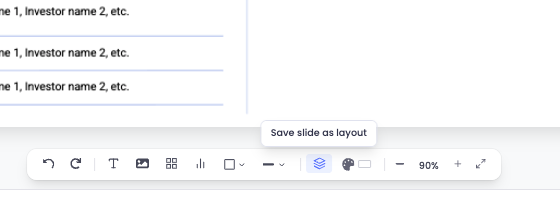
- Open the slide in the Slides panel.
- Use the toolbar action for Save as Layout.
- Enter a layout name.
- Add a description.
- Choose a category.
- Choose visibility.
- Select overwrite behavior if needed.
- Click Save Layout.
The saved layout appears in Use layout and From layout....
Layout Name And Description
The layout name is the title users see in the layout catalog. Make it specific enough to recognize quickly.
The description tells users and AI when to use the layout. A useful description should explain the content structure, not just the visual style.
Avoid vague descriptions like "nice slide", "summary", or "business layout".
Category
Categories keep the layout catalog scannable. Choose the category that best describes the layout's purpose. If you are building a team library, use consistent category names so users do not have to search across duplicates.
Visibility
Visibility controls who can see and use a layout.
| Visibility | Who can use it | Use case |
|---|---|---|
| Private | Only you | Drafts, personal formats, experiments. |
| Organization | Your organization | Team-approved layouts and shared working formats. |
You may only see the visibility options your role can manage.
Overwrite Existing Layouts
Use Overwrite if a layout with this name already exists when you intentionally want to replace an existing layout with the current slide.
Leave it unchecked when you are creating a new variant. If a layout with the same name already exists, saving may fail until you choose a different name or enable overwrite.
Edit Layout Metadata
To update a saved layout:
- Open Use layout or From layout....
- Hover over a layout card.
- Open layout details.
- Update the layout name, description, category, or visibility.
- Click Save Changes.
Only layouts you can manage show editable metadata controls.
Delete Layouts
You can delete layouts you manage from the layout catalog.
For one layout:
- Open the layout catalog.
- Hover over the layout card.
- Use the delete action.
- Confirm the deletion.
For several layouts:
- Open the bulk-delete mode.
- Select layouts.
- Click Delete.
Deleting a layout removes it from the catalog. Slides already inserted into decks remain editable slides.
Why Descriptions Matter For AI
When AI is asked to create slides using layouts, it uses layout names and descriptions to decide which layout best matches the request. Clear descriptions help AI choose the right structure without needing extra clarification.
Describe:
- The intended use case.
- The type of content the layout expects.
- The main visual structure.
- Important element IDs and how each one should be edited.
- What AI should do when expected source data is missing or an alternative is available.
Work With Element IDs
Every object on a Canvas Slide has an element ID. Text boxes, images, charts, tables, shapes, and lines each have their own ID.
AI can see the slide and its structure, but it edits layouts much more reliably when the layout description explains which element IDs correspond to which content. This is especially useful for reusable layouts with repeated text boxes, metric rows, logos, or sections that look similar.
Element IDs do not appear in the final exported PowerPoint file.
Copy Element IDs From Layout Details
The easiest place to copy element IDs is the layout detail preview.
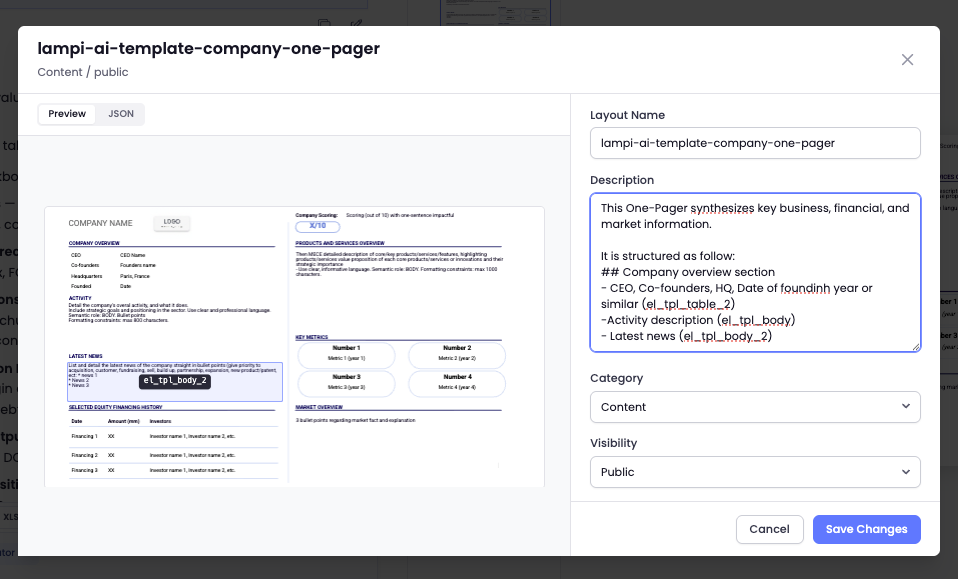
- Open Use layout or From layout....
- Hover over a layout card.
- Open the layout details view.
- Stay on the Preview tab.
- Hover over an object in the preview to reveal its element ID.
- Click the object to copy the ID.
Add Element IDs To The Layout Description
When saving or editing a layout, add a short section in the description that maps key element IDs to the content AI should place there.
For example:
Business overview section
el_tpl_image_7: replace with the current company logo.el_tpl_text: title of section Business overview.el_tpl_text_27:CEO: CEO Name.el_tpl_text_28:Founded year: Year.el_tpl_text_29:HQ: HQ location.el_tpl_text_30:Financing: Financing stage.el_tpl_body: replace with the business overview description of the current company.
Use the exact element IDs from the layout preview. Then explain the expected content, format, and fallback behavior for each important element.
Write Instructions For Missing Or Alternative Data
A good layout description should tell AI how to react when the expected source data is not available.
Examples:
- If the company logo is unavailable, use a clean text company name instead of inventing a logo.
- If CEO data is missing, remove the CEO line or write
CEO: Not disclosed, depending on the slide standard. - If founded year is unavailable, omit that metric rather than guessing.
- If financing stage is unavailable but funding round is available, use the funding round as the closest alternative.
- If the business overview is too long, summarize it into 2 to 3 concise sentences.
This makes the layout more reusable because AI knows both the target element and the rule for filling it.
Write Good Element ID Prompts
You can also reference element IDs directly when asking AI to edit a slide. A good prompt should explain how each element ID should be edited, what source data to use, and what AI should do if the preferred data is missing.
Include:
- The exact element ID.
- The content or Grid column that should populate it.
- The expected format, such as a short label, metric line, logo, chart, or paragraph.
- The fallback behavior when data is missing.
- Any acceptable alternative source or replacement.
- Whether nearby elements should stay unchanged.
Examples:
- "Replace
el_tpl_image_7with the current company logo." - "Update
el_tpl_bodywith a concise business overview from#Company Description." - "If
#CEOis empty, remove theel_tpl_text_27line instead of inventing a name." - "If
#Financing Stageis empty but#Last Funding Roundis available, use#Last Funding Roundinel_tpl_text_30."
Use element IDs when a slide has multiple charts, tables, repeated text boxes, or similar-looking sections and you need AI to edit the right object.