Edit Slides in the Panel
Use the Slides panel as a visual editor for selecting, arranging, formatting, and refining Canvas Slides.
Open The Slides Panel
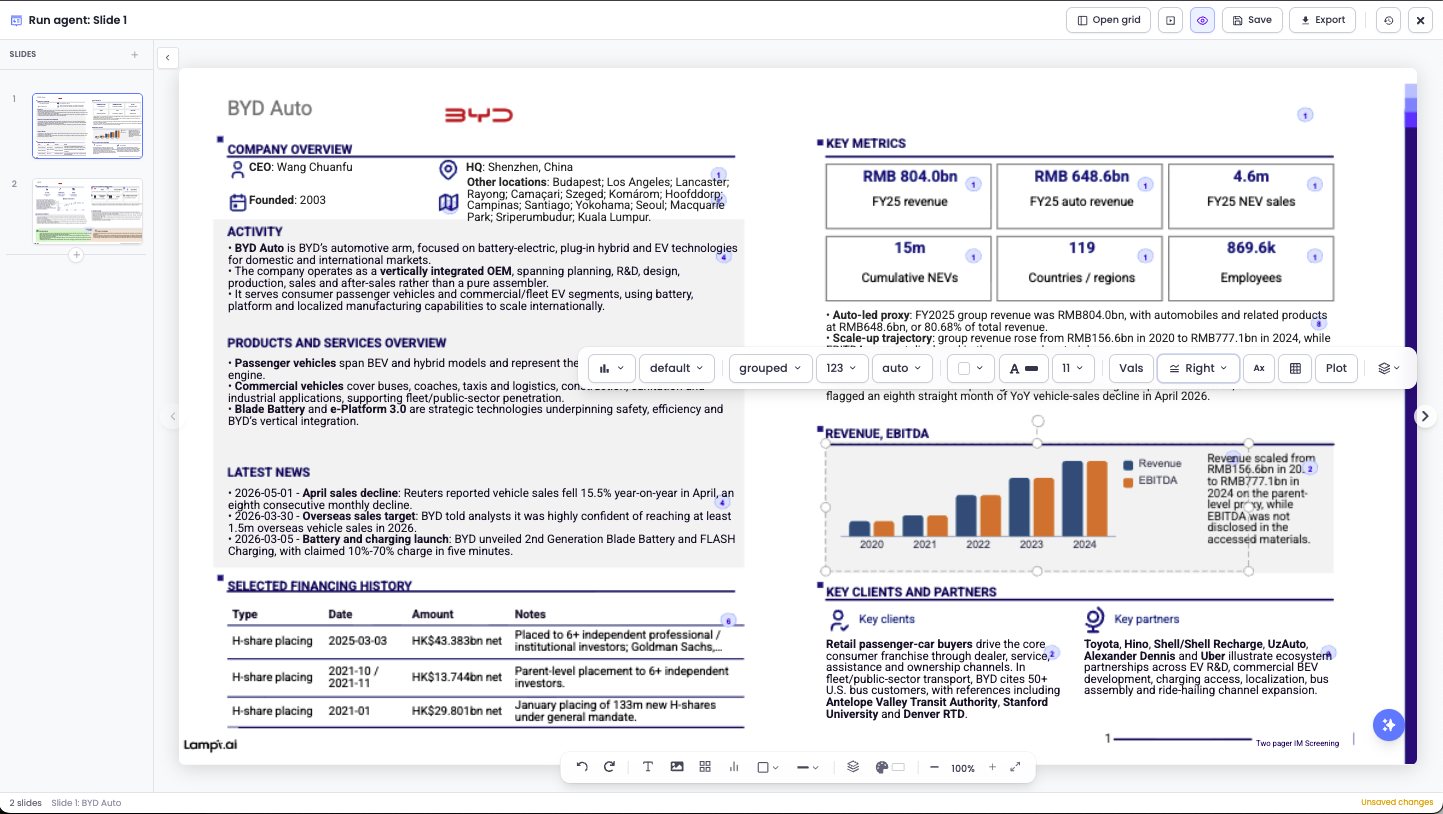
Open the Slides panel from a Slides deck or from a Canvas Slide cell in a Grid. The panel includes:
- A slide list on the left.
- The active slide canvas in the center.
- Header actions for presentation mode, citations, Save, Export, and version history.
- A floating canvas toolbar for adding objects, undo/redo, zoom, background, and Save as Layout.
- The Modify slides AI composer.
Select, Move, And Resize Objects
Click an object to select it. Drag selected objects to move them. Use the resize handles to change size.
You can select multiple objects to align, move, or format them together. Drag on an empty part of the canvas to select a group of objects.
Use undo and redo from the floating toolbar if you need to step backward or forward.
Edit Text Inline
Select a text object and edit the text directly on the slide. Text formatting controls appear when text is selected.
Common text edits include:
- Font size
- Font family
- Bold, italic, underline, and strikethrough
- Text color
- Alignment
- Bullets and lists
- Link-aware text
Add Objects
Use the floating canvas toolbar to add:
- Text
- Image
- Table
- Chart
- Shape
- Line
New objects are editable like any other slide object.
Format Objects
Formatting controls change based on the selected object.
| Object type | Common controls |
|---|---|
| Text | Typography, color, alignment, list style. |
| Image | Replace image, reset aspect ratio, opacity, icon color when applicable. |
| Table | Theme, header color, cell color, borders, font, selected cell formatting. |
| Chart | Chart type, title, subtitle, source, axes, theme, value format, data, series colors. |
| Shape | Fill, border, border radius, opacity, flip, layer order. |
| Line | Line color, width, dash style, arrowheads, opacity. |
Edit Charts And Tables
Charts and tables have structured editing controls. Use them when you need exact numbers, labels, series, or formatting.
For charts, open the chart editor to update chart type, data series, axis labels, value format, color theme, and source or footnote text.
For tables, select the table or individual cells to update styling and content.
Use AI To Modify Slides
Open Modify slides to ask AI for changes. You can type a custom instruction or use a quick edit such as Refresh layout, Be concise, Add more, or Enrich visual.
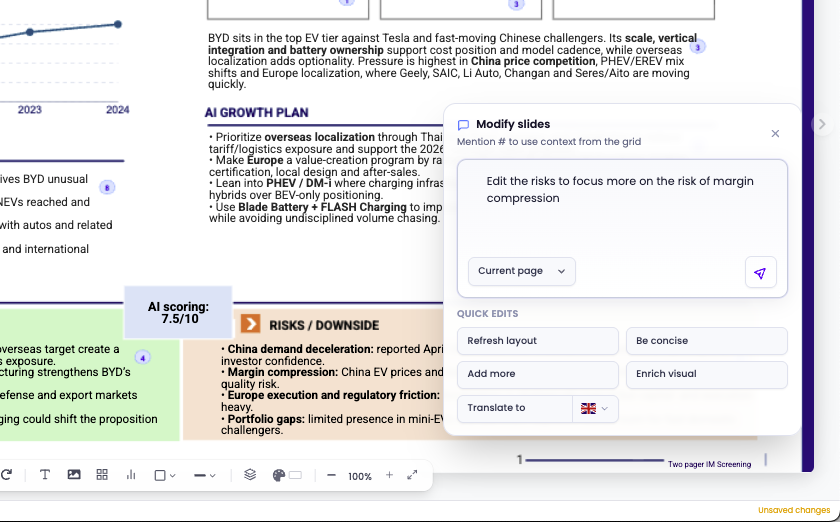
Choose the right scope before sending:
- Current page for a focused slide edit.
- All pages for a deck-wide edit.
When Grid context is available, type # to mention Grid columns in the request.
Review Citation Badges
When a slide uses sourced content, Lampi stores citation metadata on the relevant slide object. The citation reference is not printed into the visible text, so the slide stays clean while the source still travels with the object.
Use the citation toggle in the header to show or hide citation badges on the canvas. A badge appears near the top-right of a cited object, and the badge number shows how many distinct sources are attached to that object. Hiding badges does not remove the citations.
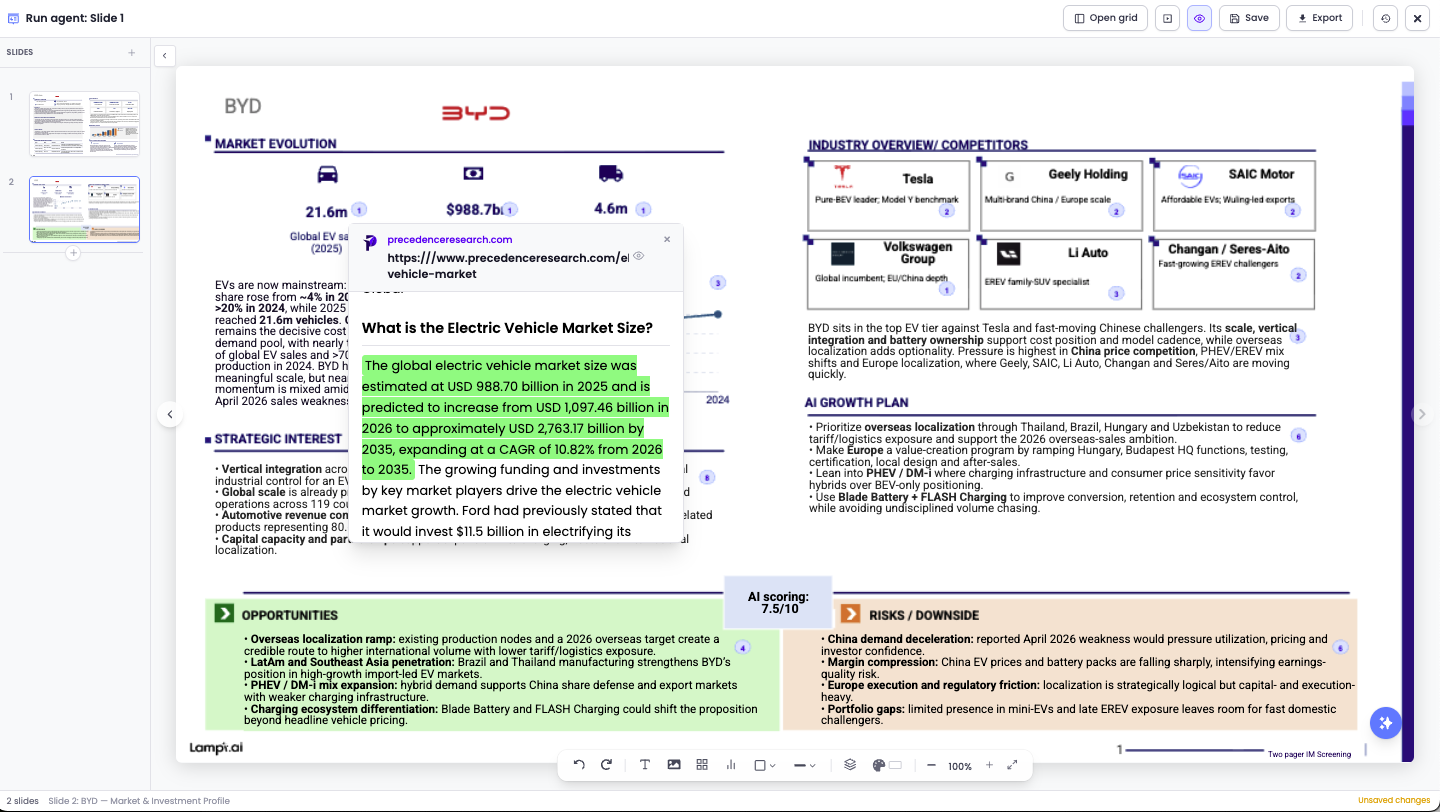
Hover over or click a badge to inspect its source:
- For document or web sources, Lampi opens the source preview at the supporting chunk.
- For Grid sources, Lampi opens the cited Grid cell with the row and column context.
- If an object has multiple citations, use the source preview navigation to move through them.
Tables can carry citation metadata for individual cells, but the canvas shows the review badge on the table object. Charts, text, images, shapes, and lines can also carry object-level citations.
Presentation mode hides citation badges automatically so you can review the deck without editing overlays.
Navigate Slides
Use the slide list to select pages. Use the previous and next controls on the canvas to move through the deck. Drag thumbnails in the slide list to reorder pages.
Presentation Mode
Use Start presentation to review slides without the editing controls. Exit presentation mode to return to editing.
Version History
Use Version history to review prior saved versions and restore one when needed. Restoring a prior version changes the deck, so review the result before continuing.