Create and Edit Slides
Create slides from scratch or reusable layouts, then refine them manually or with AI.
Create
There are two main ways to create Canvas Slides: ask AI to build slides from scratch, or ask AI to use a reusable layout.
Create Slides From Scratch With AI
Use this path when the slide structure is open and you want AI to choose the best composition. AI can create slide titles, write concise content, add visual structure, and use charts, tables, shapes, icons, or images when they clarify the message.
AI can create slides in two styles:
- Lampi's default slide style when no brand has been configured.
- Your configured brand when your workspace has brand guidance available, so slides follow your colors, typography, and visual conventions.
Describe the audience, source material, expected format, and desired level of detail. For example, ask for a one-page investment summary, a short IC deck, a market landscape, or a KPI update.
Use A Layout Or Template
Use a layout when the slide should follow a known format. Layouts are reusable templates for specific use cases, such as a company one-pager, IC deck page, board update, KPI summary, market map, or recommendation slide.
AI can use a layout as the starting point and fill or adapt it for the current request. This keeps recurring outputs consistent while still letting AI tailor the content.
To learn how to browse, insert, and import layouts, see Use Layouts and Templates.
Edit
After slides exist, you can refine them manually or with AI.
Edit Manually
Use manual editing when you need direct control over the slide.
In the Slides panel, you can:
- Select, drag, resize, duplicate, and delete slide objects.
- Edit text directly on the slide.
- Add text, images, tables, charts, shapes, and lines.
- Format text, charts, tables, images, shapes, lines, and slide backgrounds.
- Reorder slides from the slide list.
- Use undo and redo while editing.
Manual editing is best for final polish, exact positioning, chart or table cleanup, and small copy changes.
Edit With AI
Use AI editing when you want to describe a change in natural language. Open Modify slides in the Slides panel and type what you want to change in the input bar.
You can also ask for slide edits from a normal chat when you are working with the slide deck in that chat context.
Examples of AI edit requests:
- "Make this page more concise and executive-ready."
- "Turn the bullet list into a 2-column comparison."
- "Add a revenue chart and move the key takeaway above it."
- "Apply a more polished layout while keeping the same content."
Quick Edits
Quick edits are preset AI actions for common refinements:
| Quick edit | Use it when |
|---|---|
| Refresh layout | The slide has the right content but needs better spacing or alignment. |
| Be concise | The slide has too much copy or long bullets. |
| Add more | The slide feels incomplete or needs more supporting detail. |
| Enrich visual | The slide needs a stronger presentation-ready composition. |
You can use a quick edit as-is, or type a more specific instruction in the input bar.
Choose Current Page Or All Pages
The Modify slides composer has a scope selector:
| Scope | What it changes |
|---|---|
| Current page | Only the slide currently selected in the slide list. |
| All pages | Every slide in the open deck. |
Use Current page for targeted edits like changing a chart, rewriting a title, or adding a callout. Use All pages for deck-wide edits like making the wording more concise, applying a consistent tone, or translating the deck.
If AI changes more than you expected, switch to Current page and make the request more specific.
Use Precise References
When a slide has several similar objects, describe the target clearly. You can reference position, object type, visible text, slide number, or an element ID.
Examples:
- "Update the chart on the right side of the current page."
- "Rewrite the top-left KPI callout."
- "Change the object with element ID
risk_table."
For more precision, see Work with Element IDs.
Use Grid Context With #
Grid context is only available when the Slides panel is opened from an AI Grid Agent Canvas Slide cell. In that case, the Modify slides composer can use the current row as context.
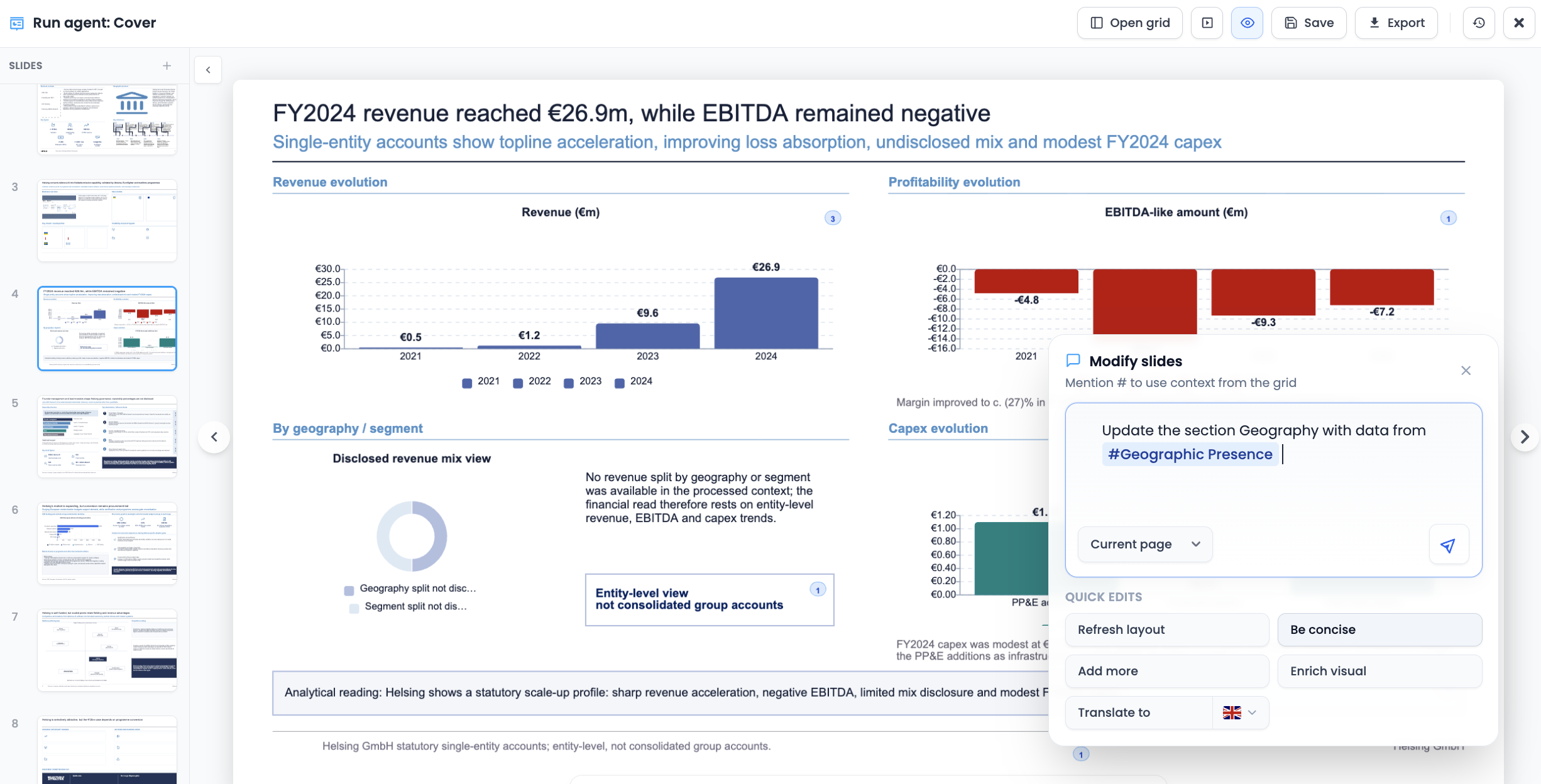
Type # to mention a Grid column and insert row-specific data into your request.
Examples:
- "Update the title using
#Company Name." - "Rewrite the investment thesis using
#Company Descriptionand#Market Analysis." - "Replace the KPI table with values from
#Revenue,#EBITDA, and#Employees."
The composer uses the current Grid row by default, so the same prompt can work across many rows.