MCP Connectors
Use MCP connectors to let Lampi AI work inside external apps and services. You can connect a hosted connector from the Lampi catalog or add your own remote MCP server.
MCP connectors are available from the Connectors or App Integrations area in Lampi AI. Once a connector is connected and its tools are discovered, it becomes available to select in Lampi AI, including Chat and AI Grid Agents.
Only connect MCP servers from developers and vendors you trust. An MCP connector can expose tools that search, read, create, update, or delete data in external systems.
Important: Each Connector Is Separate
Every connector has its own connection state and its own OAuth flow.
That means connecting Gmail does not automatically connect Google Calendar or Google Drive. If you want to chat with all three, you must connect all three individually in Settings → Connectors.
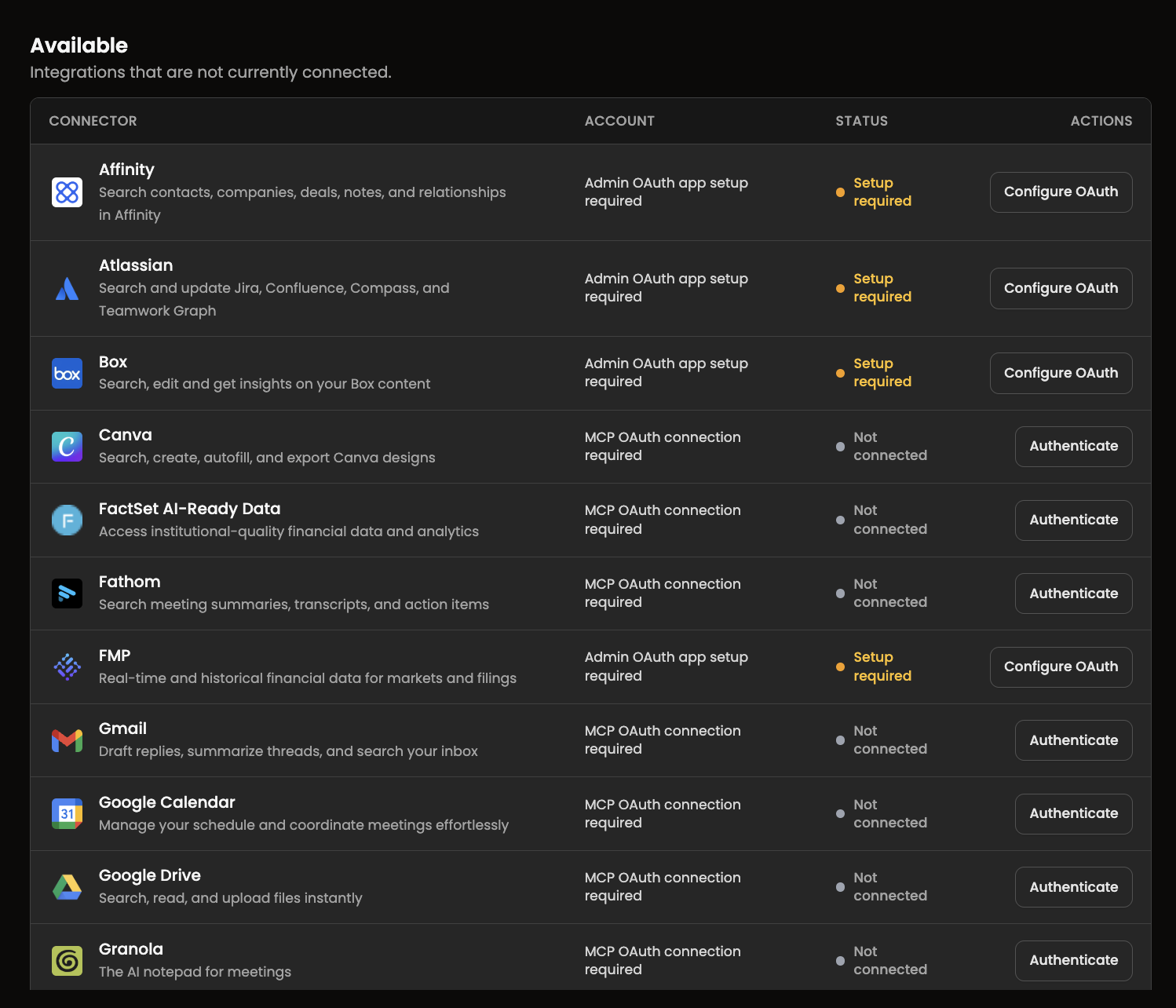
In Settings → Connectors, Gmail, Google Calendar, and Google Drive are separate connectors, each with its own status.
Google connectors example
To test the Google integrations in Lampi AI:
- Sign in to Lampi AI.
- Open Settings → Connectors.
- Connect Gmail, Google Calendar, and Google Drive one by one.
- Complete the OAuth flow for each connector separately.
- Confirm that each connector shows Connected before testing it in chat.
Google Drive File Sync is different from the live Google Drive MCP connector.
- Google Drive File Sync synchronizes selected Drive files into Lampi AI knowledge.
- Google Drive in the MCP connectors list lets Lampi search, read, and upload files live from chat.
Connecting file sync does not automatically enable the live Google Drive chat connector.
Connect a Hosted MCP Connector
Use this flow for connectors that already appear in the Available section of the MCP connectors catalog.
- Open Connectors in Lampi AI.
- In the Available section, find the connector you want to use.
- Check the status shown for that connector:
- Not connected: the connector is ready for your personal authentication.
- Setup required: your workspace first needs an admin OAuth app configuration.
- Pending: authentication started but has not finished yet.
- Click Authenticate when the connector is ready for your account.
- Complete the authentication flow from the external provider.
- Return to Lampi AI. When the connection is complete, the connector moves to Connected.
Some hosted connectors need organization-level OAuth client credentials before users can authenticate their own account. In that case, ask a Lampi AI admin to configure the connector first.
Enable Connected Connectors in Chat
Connecting a connector in Settings → Connectors makes it available to chat, but Lampi still needs to know which connected tools you want to use in the current conversation.
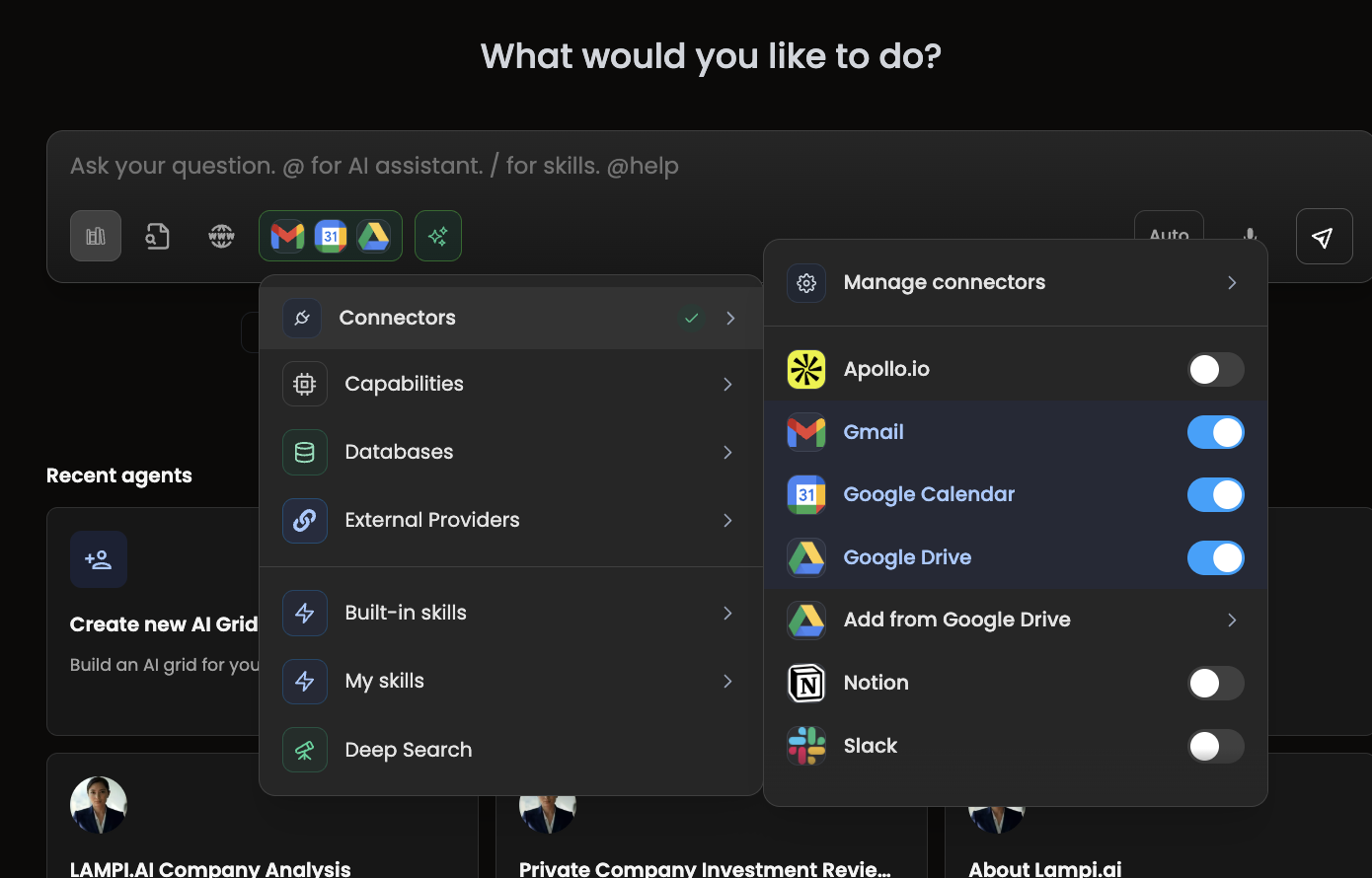
In chat, open the tools panel, choose Connectors, then select the connected apps you want Lampi to use.
- Open a chat in Lampi AI.
- Open the tools panel next to the chat input.
- Select Connectors.
- Click the connected connectors you want to use, such as Gmail, Google Calendar, or Google Drive.
- Send your prompt.
If a connector does not appear in the chat panel, go back to Settings → Connectors and confirm that it is already connected.
Example prompts
- "List my upcoming calendar events."
- "Find the email from John about the project."
- "Search my Google Drive for documents containing 'budget'."
Add Your Own MCP Server
Use Add custom MCP when you want to connect a remote MCP server that is not already in the hosted catalog.
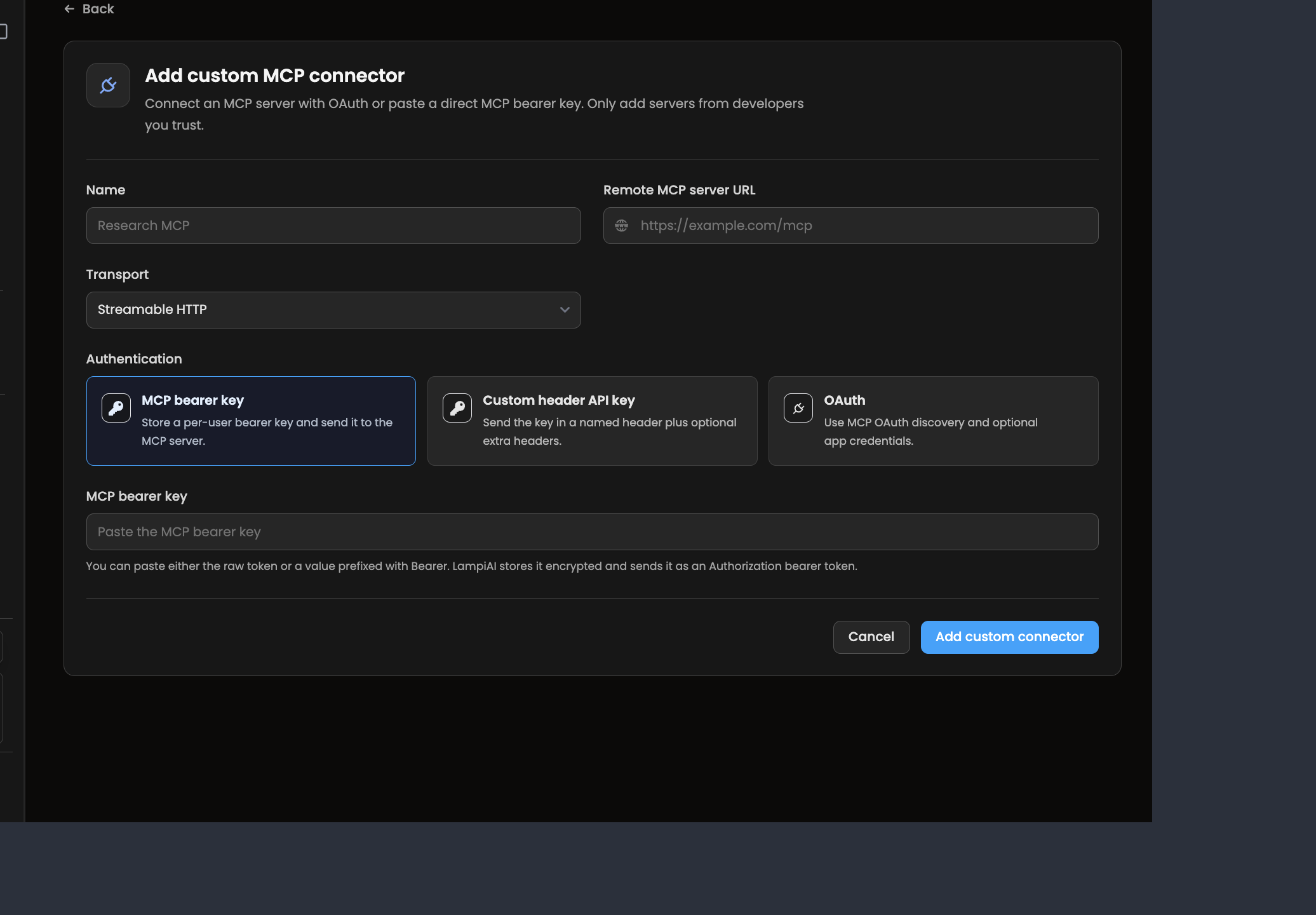
Custom MCP connector setup in the Lampi AI Connectors page.
- Click Add custom MCP.
- Enter a Name for the connector.
- Enter the Remote MCP server URL.
- Select the Transport:
- Streamable HTTP for standard HTTP MCP servers.
- SSE for MCP servers that use Server-Sent Events.
- Choose the authentication mode that matches the remote MCP server.
- Enter the required credentials.
- Click Add custom connector.
If the connection and tool discovery succeed, the connector will appear in your MCP connectors list and its tools will become available in Lampi AI.
Authentication Modes
MCP bearer key
Use this when the MCP server expects a bearer token in the Authorization header.
- Paste the raw token or a value already prefixed with
Bearer. - Lampi AI stores the value encrypted and sends it as a bearer token.
Custom header API key
Use this when the MCP server expects the key in a custom header.
- Enter the header name, for example
x-api-key. - Enter the API key.
- Add any extra non-secret headers one per line in
name: valueformat. - This is useful for providers that require an additional host header, such as
x-api-host.
OAuth
Use this when the MCP server supports MCP OAuth discovery.
- For custom connectors, OAuth client ID and secret are optional fields during setup.
- After the connector is added, users authenticate with the external provider.
- For some hosted connectors, your organization may need an admin-level OAuth app setup before personal authentication is allowed.
Connector Status Meanings
| Status | Meaning |
|---|---|
| Not connected | The connector exists, but your account has not authenticated yet. |
| Setup required | The connector needs organization-level OAuth app setup before users can connect. |
| Pending | Authentication has started but is not finished yet. |
| Connected | The connector is active and ready to use. |
| Disconnected | A previous connection exists but needs to be authenticated again or corrected. |
Troubleshooting
- If authentication starts but the connector stays unavailable, reopen the connector and try the authentication flow again.
- If a custom MCP connector does not become usable after saving, verify the MCP URL and transport first. A transport mismatch is a common cause of tool discovery failure.
- If you use Custom header API key, make sure every extra header is written as
name: valueon its own line. - If a hosted connector shows Setup required, the next action is with your admin, not with your personal account.
Next: Tools & MCP Library →