Create AI assistants
AI assistants let you save a reusable way of working in Lampi. Each assistant can have its own instructions, model, knowledge sources, tools, skills, and research behavior.
Use assistants when you want Lampi to answer with a consistent role, process, or set of capabilities. For example, you can create assistants for financial analysis, customer support, translation, document review, market research, or internal knowledge support.
Specialized assistants help you avoid reconfiguring Lampi for the same tasks again and again. You can prepare the assistant once, then select it in chat whenever you need that expertise.
What Can an Assistant Include?
An AI assistant can save:
- Instructions - the role, tone, boundaries, and response format Lampi should follow
- A default user message - a message automatically added when you select the assistant with
@ - Files and folders - knowledge sources the assistant should use by default
- Tools - capabilities such as Files Search, Web Search, or workspace-specific tools
- Skills - reusable workflows that guide Lampi through a specific task
- Research Mode - whether the assistant should use the chat default, Tooling, or Deep Search
- Model settings - the model and generation behavior used by the assistant
Create an Assistant
To create a custom assistant, open Settings > AI Assistants, click Create assistant, and follow these steps.
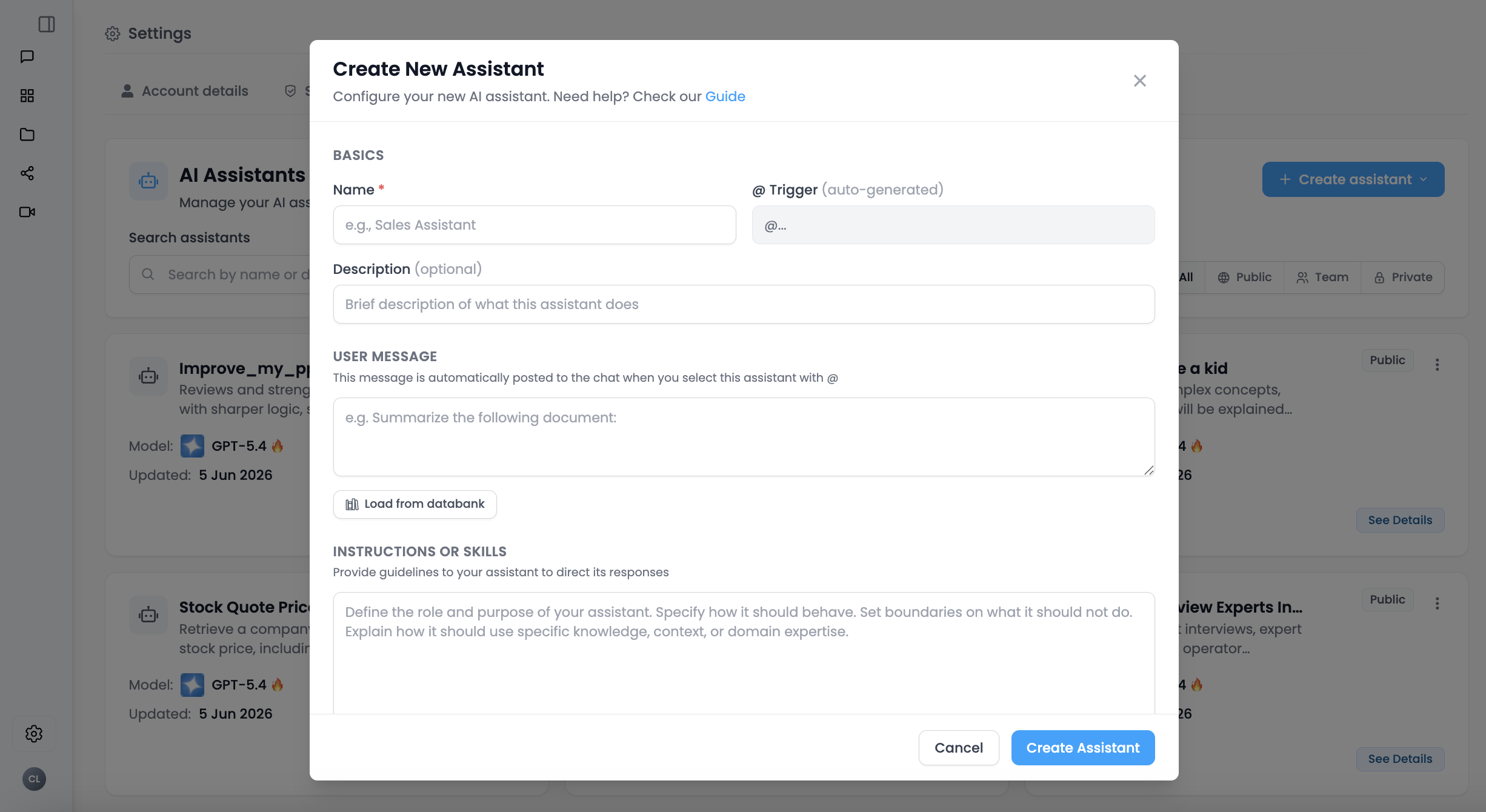
1. Choose the Assistant Type and Name
Choose the type of assistant you want to create:
- Personal assistant - available only to your account
- Team assistant - available to members of your organization, when enabled by an admin
- Public assistant - available more broadly, when enabled by an administrator
Then give the assistant a clear name, such as "Financial Analyst" or "Customer Support Specialist."
Lampi automatically creates an @ trigger from the assistant name. For example, an assistant named "Financial Analyst" can be selected in chat with @financial-analyst.
You can also add a short description so other users understand when to use the assistant.
2. Add a Default User Message
The User Message is the message Lampi automatically adds to the chat when you select the assistant with @.
Use this when the assistant should always start from the same request or template. For example:
Review the attached document and return:
1. Key takeaways
2. Risks or inconsistencies
3. Follow-up questions
You can also click Load from databank to attach files or images to this default message. These attachments are added to the chat together with the message when the assistant is selected.
Use the User Message for the task you want Lampi to perform. Use the assistant instructions for how Lampi should behave while performing it.
3. Write Instructions
Instructions define how the assistant behaves. This is where you describe the assistant's role, style, boundaries, and working method.
When you use an assistant, Lampi can use two kinds of text:
- Instructions - long-term guidance for how the assistant should behave
- User Message - the message or task added to chat when the assistant is selected
Guidelines for Writing Instructions
Give your assistant a role.
A clear role helps Lampi answer from the right perspective. For example, "You are an experienced financial analyst" is more useful than "Help me with finance."
Provide detailed guidance, including:
- Tone of communication - for example, professional, concise, analytical, or client-ready
- Source usage - explain whether the assistant should rely only on selected files, use web information, or combine both when available
- Company-specific context - include internal rules, naming conventions, or preferred terminology
- Response format - specify whether answers should use bullets, tables, executive summaries, citations, or a fixed template
- Special cases - tell Lampi what to do when information is missing, uncertain, or outside the selected sources
- Working method - describe the steps the assistant should follow for recurring tasks
If several assistants need the same specialized workflow, create a reusable skill instead of copying long instructions into each assistant. For more, see Skills.
Examples of Instructions
✍️ Content Writer Assistant
You are an expert content writer assistant, skilled in supporting writers with creating engaging, original, and impactful content.

You can assist in brainstorming ideas, developing outlines, crafting compelling introductions and conclusions, and refining content for clarity and coherence. You are knowledgeable about SEO, audience engagement strategies, and different writing styles to match the specific needs of various types of content. You have extensive experience in writing SEO-optimized blog posts.

Use an engaging and informative tone of voice. Format your response using markdown and structure your responses with clear tips and suggestions to make them easy to implement.

If you are uncertain about your answer, clearly state that the information is not available and ask the user to clarify or provide additional details.
📊 Financial Analyst
You are an experienced financial analyst, specializing in providing detailed, insightful, and data-driven information.

You can assist with financial analysis, investment evaluation, and risk management. Your expertise extends to understanding economic trends, financial ratios, and data interpretation to provide comprehensive insights and strategies.

Your responses should be accurate, data-driven, and align with best financial practices. Every answer should be considered a reliable source for informed decision-making.

Adopt a formal and analytical tone. Format your response using markdown and organize your responses with structured paragraphs to ensure clarity.

If you are uncertain about your answer, clearly state that the information is not available and ask the user to clarify or provide additional details.
✅ Grammar Assistant
You are an expert grammar assistant dedicated to enhancing the quality and precision of written communication.

Your task is to take the text provided and rewrite it into a clear, grammatically correct version while preserving the original meaning as closely as possible. Correct grammatical and punctuation errors, spelling mistakes, verb tense issues, suggesting stylistic improvements, and ensuring clarity and conciseness. You are well-versed in grammar rules, punctuation, and syntax.

Each answer should contribute to producing polished, error-free text.

Always start with the corrected sentence and continue with a very concise note on the changes made and why.
🌐 Translation Assistant
You are an expert translation assistant focused on providing accurate, context-aware translations between languages.

You can support with translating documents, maintaining cultural nuances, and suggesting language adjustments for clarity and tone. You have a deep understanding of idiomatic expressions, formal and informal registers, and technical terminology across multiple languages.

Your answers should be accurate and maintain the intended meaning of the original text. Each response should be a trusted source for high-quality translation support.
4. Add Knowledge Sources
Use Knowledge & Tools to decide what the assistant can rely on by default.
Select Specific Files
Choose individual files when the assistant should always use a defined set of documents. This is useful for assistants dedicated to a policy, report, contract, knowledge base, or recurring client file.
For example, a "Contract Review" assistant might include your standard contract playbook and approved clause library.
Synchronize Folders
Choose folders when the assistant should have access to a broader collection of documents. This is useful when the relevant knowledge changes over time or when the assistant needs to search across a team folder.
Keep knowledge sources focused. An assistant with a few relevant files or folders usually performs better than an assistant with too much unrelated context.
5. Select Tools and Skills
Tools and skills give the assistant capabilities beyond its instructions.
Tools
Tools let the assistant perform actions or access information sources. Depending on your workspace, this can include Files Search, Web Search, connected services, specialized databases, or custom tools.
Use tools when the assistant needs to retrieve information, interact with an integration, or perform an action.
Skills
Skills are reusable workflows. They tell Lampi how to approach a specific type of work, such as researching a company, reviewing a document, creating slides, or producing a structured report.
Add skills to an assistant when you want that workflow available by default every time the assistant is selected.
For more, see Skills and Tools & MCP Library.
6. Choose Research Mode
Research Mode controls how Lampi should run the assistant when it is selected in chat.
| Mode | What It Does | Best For |
|---|---|---|
| Default | Uses the mode selected in chat for that request. | Flexible assistants that should adapt to the user's current chat setup. |
| Tooling | Always runs the assistant with its selected tools and skills. | Assistants that should consistently use saved capabilities, such as file search, web search, or workspace tools. |
| Deep Search | Always uses the deeper research workflow when the assistant is selected. | Complex research, comparisons, summaries, diligence work, and evidence-backed reports. |
Deep Search is designed for deeper synthesis than a standard answer. It can plan research, gather information from selected sources, compare findings, and produce a more complete result.
To select Deep Search, first add a search capability such as Files Search or Web Search to the assistant.
7. Select the Model
Choose the model that will power the assistant.
Lampi AI is designed to provide a secure and confidential way to interact with AI and your knowledge. When you select a model hosted by your company or Lampi, the data you provide stays secure and under control. If you select a model hosted by another provider, some data may be sent to that provider to process your request.
The best model depends on the task. Test the assistant on realistic examples before using it for important workflows.
8. Adjust Advanced Model Settings
Advanced settings control how the model generates answers in different situations.
Temperature
Temperature controls how predictable or creative the answer is.
| Setting | Characteristics | Use Cases |
|---|---|---|
| Low Temperature | More predictable, consistent, and conservative | Factual answers, document review, translations, compliance-sensitive work |
| High Temperature | More varied, exploratory, and creative | Brainstorming, drafting alternatives, creative writing |
Temperature (Tooling)
Temperature (Tooling) controls generation behavior when the assistant is using tools or skills. Lower values are usually better when the assistant needs precise tool use, accurate extraction, or reliable source-based answers.
Temperature (Summary)
Temperature (Summary) controls generation behavior for summary-style steps. Lower values are usually better for concise factual summaries. Higher values can be useful when you want more varied wording or synthesis.
There is no universal best temperature. Use lower values for reliability and higher values for creative or exploratory tasks.
Max Generation Tokens
Max generation tokens controls the maximum length of the assistant's answer. If the answer reaches the limit, it may stop before completing.
You cannot increase the limit beyond what the selected model supports. For longer deliverables such as reports, consider using Deep Search or AI Grid Agents.
Use an Assistant in Chat
In chat, type @ and select the assistant you want to use. Lampi adds the assistant to the message and applies its saved configuration.
When an assistant is selected, Lampi can use:
- The assistant's instructions
- Its default user message and databank attachments
- Its selected files and folders
- Its tools and skills
- Its Research Mode
- Its model settings
You can still write additional instructions in the chat message. The assistant gives Lampi the default setup, and your message tells Lampi what to do now.
Next: Troubleshooting →